
Testing Steps
| Q | A |
|---|---|
| Why am I seeing only 100 items in the response? | Since we can’t predict how many items will be returned, we limit the UI display to the first 100 items to ensure optimal performance. To work with the complete dataset, use the step output which contains all the results from the response. |
Running Automations
My workflow is set to run on a schedule, but it isn’t executing at the scheduled times. What could be the issue? If your scheduled workflow isn’t running, it might not be enabled. Only enabled workflows will run with scheduled triggers. To ensure it runs as planned, follow these steps:- Enable via Workflow Editor Menu:
- Open the Workflow Editor.
- Locate the Enable toggle on the upper right corner (next to the Save button).
- Click on Enable to enable the workflow.

- Enable via Workflow Menu on Workflows Page:
- Go to the workflows page.
- Find your workflow and check its status.
- Use the workflow menu to enable it.

- Go to the workflows page.
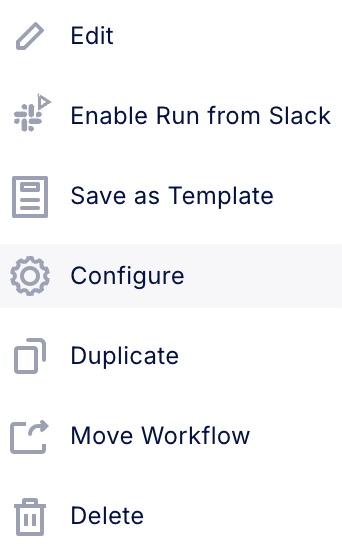
- Select the workflow menu.
- Choose “Configure”.
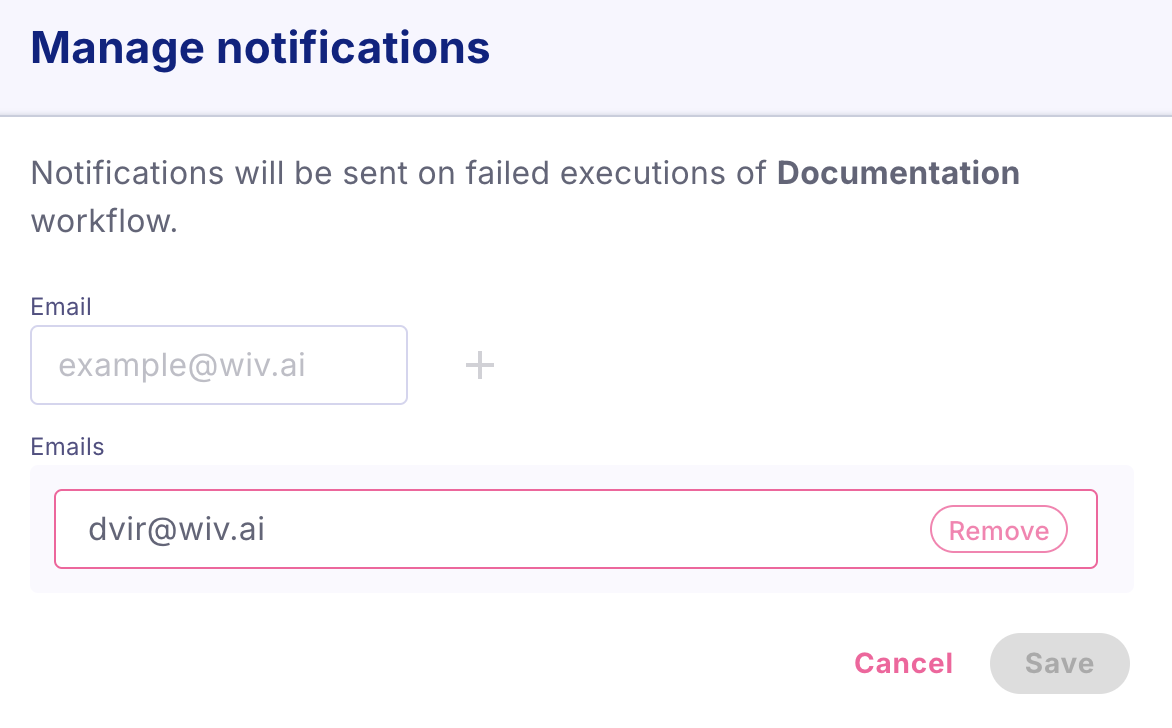
- Add the email addresses you want to notify.
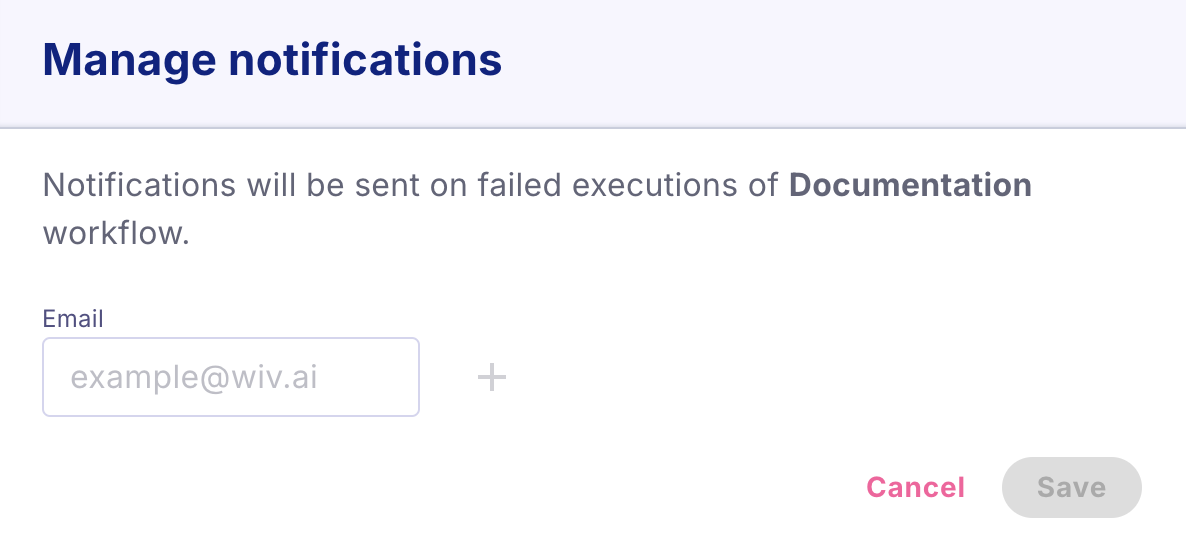
- Press the + button and Save.
| Q | A |
|---|---|
| I want to run automations from my cases page, but I can’t find my automation. | To run a workflow from the Cases page, you will need to add a parameter to the Entry step of the workflow that is called Records. The value for Records can be an empty list as a default []. |