Pre-requirements:

  1. Permissions of Owner or Contributor on On-Boarded Azure Subscription
  2. Azure CloudShell register 
  3. Account Owner (AO) view charges enabled Enterprise Administrators must enable the “Account owners can view charges” policy in the Cost Management + Billing menu under Policies in the Azure portal. Once enabled, AOs can analyze costs, set budgets, and view usage details in the portal.

Script Breakdown:

The script involves several steps, including the creation of an App registration, a Storage Account, and the setup of Cost Management and Billing export. Below is a summary of the script’s key functionalities:
  1.    Login to Azure:
   - The script initiates by logging into the Azure account and retrieves the current subscription and tenant IDs.
  1.    Subscription Verification:
   - The script verifies the correct subscription ID is set. If not, it exits with an error message.
  1.    Resource Provider Registration:
   - The script checks if the Microsoft.Storage resource provider is registered. If not, it registers the provider.
  1.    Resource Group Setup:
   - The user is prompted to enter a resource group name and select a region from a predefined list. The script then checks if the resource group exists, creates it if necessary, and verifies its existence.
  1.    App Registration and Service Principal:
   - The script checks if a service principal for the app (wiv_account) exists. If not, it creates one and generates a new client secret.
  1.    Role Assignments:
   - The script assigns the necessary roles to the service principal:      - Cost Management Reader      - Monitoring Reader      - Directory Readers (Optional)
  1. Admin Consent:
    - The script grants admin consent for the application to access required permissions.
  1. Completion and Outputs:
    - Upon successful completion, the script provides the following details:       - Application Display Name       - Application (Client) ID       - Directory (Tenant) ID       - Client Secret Value This script ensures that all necessary components and permissions are correctly configured to onboard a new subscription to the Wiv platform.

Integration:

Open Azure CloudShell https://shell.azure.com/  Run the following command:
curl -sO https://raw.githubusercontent.com/wiv-ai/AzureOnBoarding/main/.cloudshell/startup.sh && chmod +x startup.sh && ./startup.sh
  1. Follow script prompt instructions
  2. Take note of the script output
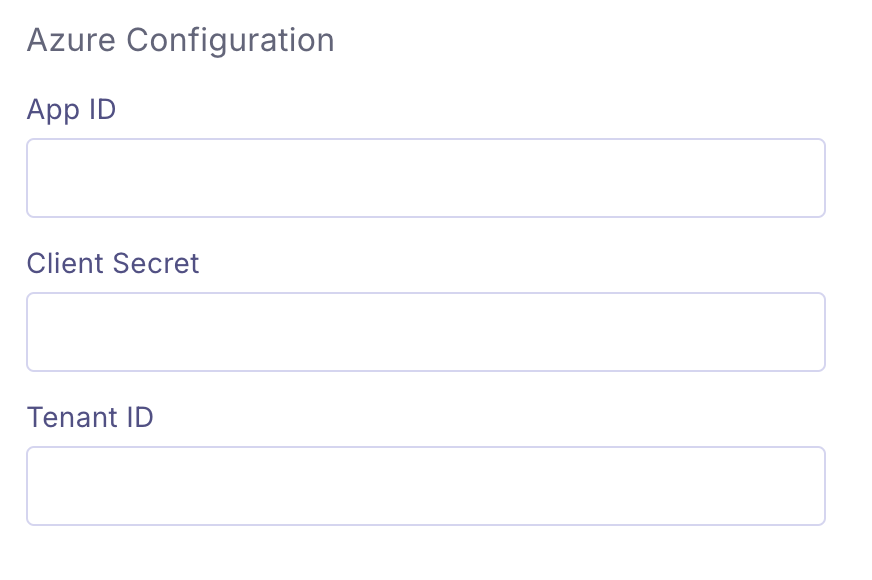
      - Application (Client) ID       - Directory (Tenant) ID       - Client Secret Value
  1. Login to Wiv Platform
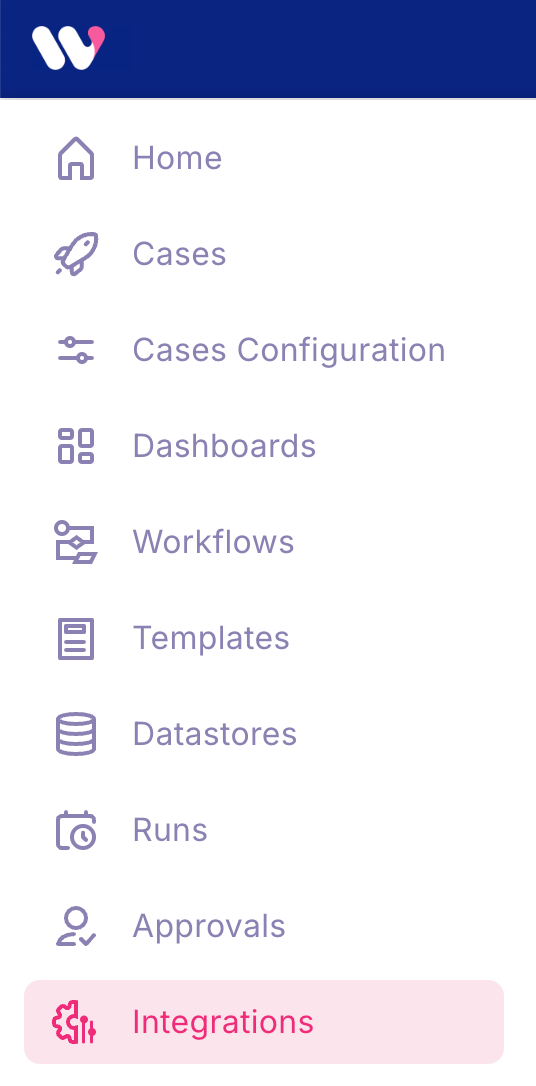
  2. Navigate Integrations Page
image
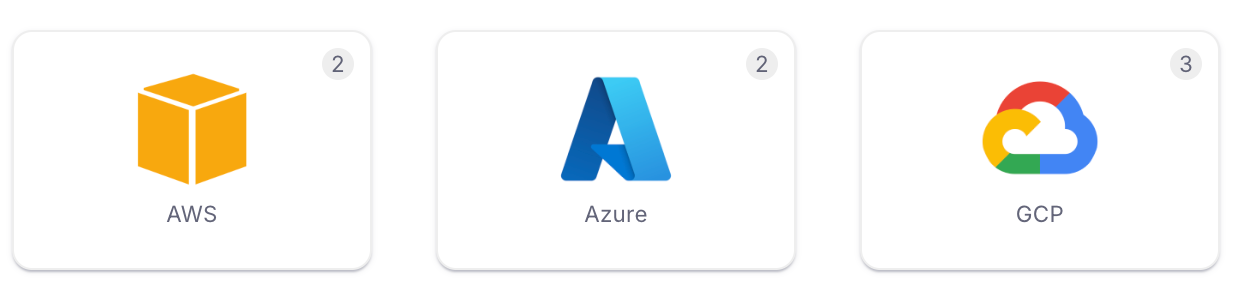
  1. Click on Azure
image
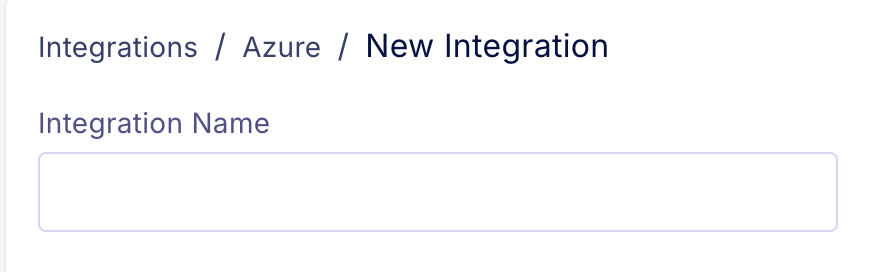
  1. click on New Azure Integration
image
  1. Provide an integration name
image
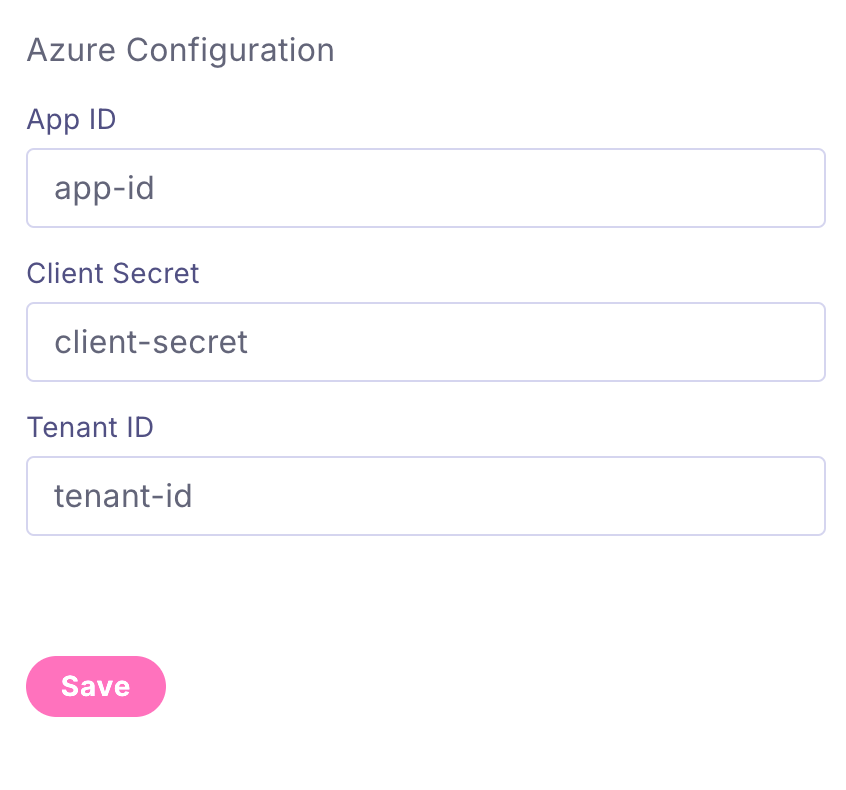
  1. Complete the App ID, Client Secret and Tenant ID which were noted from script output:
image
  1. Click Save
image