Adding a Microsoft Teams Integration

To integrate Microsoft Teams with Wiv, you need the following:
  • A Microsoft account with Admin permissions.
  • An active Microsoft Teams license.
  • The following permissions:
offline_access, ChannelMessage.Send, Channel.ReadBasic.All, ChatMessage.Send, Team.ReadBasic.All, User.Read.All, Chat.Create, Chat.ReadBasic, ChannelMessage.ReadWrite, ChannelMessage.Read.All.

Detailed Steps for Adding the Integration

  1. Access the Integration Tab
In the Wiv app, navigate to the Integration tab.
  1. Add Microsoft Teams
Click on the Microsoft Teams button.
  1. Create a New Integration
Click on + New Microsoft Teams Integration.
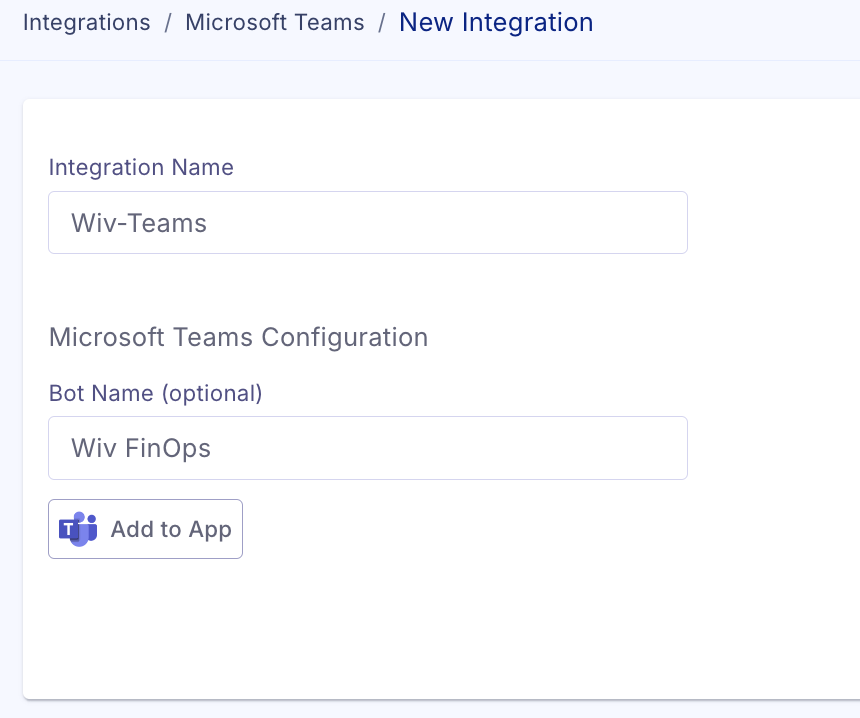
  1. Name Your Integration
Enter a name for your integration.
image
  1. Customize Bot Name (Optional)
You can add a custom bot name. This name will appear at the top of the messages sent by the bot. By default, the name will be Wiv-bot.
  1. Add the Integration
Click on Add to App.
  1. Authorize Microsoft Account
A Microsoft web page will open. Select an account with Admin permissions and an active Microsoft Teams license.
  1. Grant Permissions
In a new Microsoft Teams window, you will be asked to grant the following permissions:
offline_access, ChannelMessage.Send, Channel.ReadBasic.All, ChatMessage.Send, Team.ReadBasic.All, User.Read.All, Chat.Create, Chat.ReadBasic, ChannelMessage.ReadWrite, ChannelMessage.Read.All.
 Accept the permissions request. Once the permissions are granted, the Microsoft Teams integration will be successfully added to your Wiv account.