
Execution
These documents are provisioned to your accounts from the Wiv account and are designed to be executed directly by you through the AWS Console.Integrated Steps
The workflow system currently integrates the following steps from the SSM automation documents:| Automation Step | Description |
|---|---|
| SSM Delete EBS Volume | Deletes a specified Elastic Block Store (EBS) volume. |
| SSM Stop EC2 Instances | Stops currently running EC2 instances. |
| SSM Start EC2 Instances | Starts currently stopped EC2 instances. |
| SSM Terminate EC2 Instances | Permanently terminates EC2 instances. |
Usage Guide
Step 1: Integrating the Step into Your Workflow
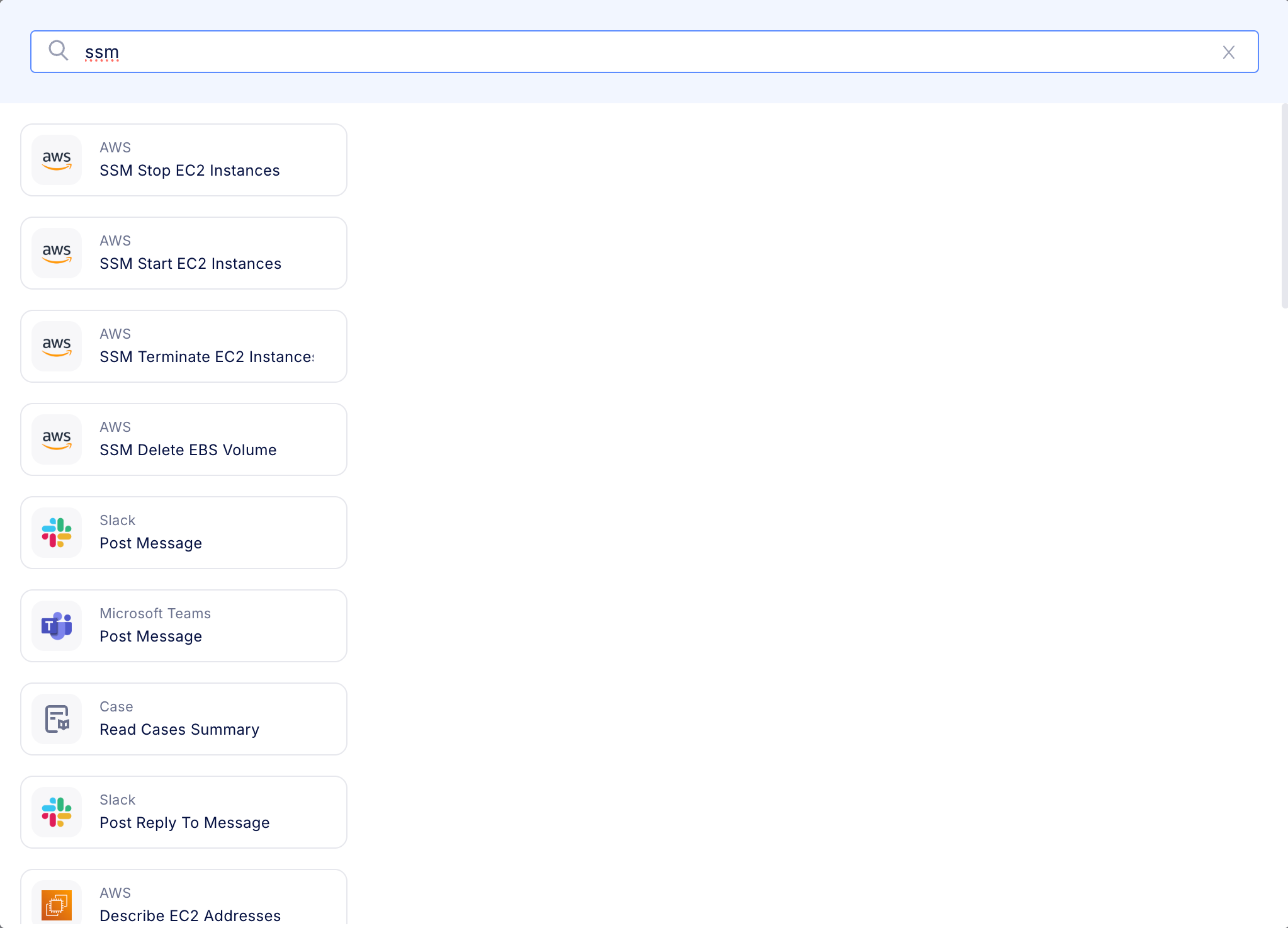
- In the workflow editor, use the search bar to look up “ssm”.
- Identify and select the SSM automation step that corresponds to the specific action you wish to perform.
- Drag and drop the chosen step directly into your workflow canvas.
Step 2: Configuring Parameters
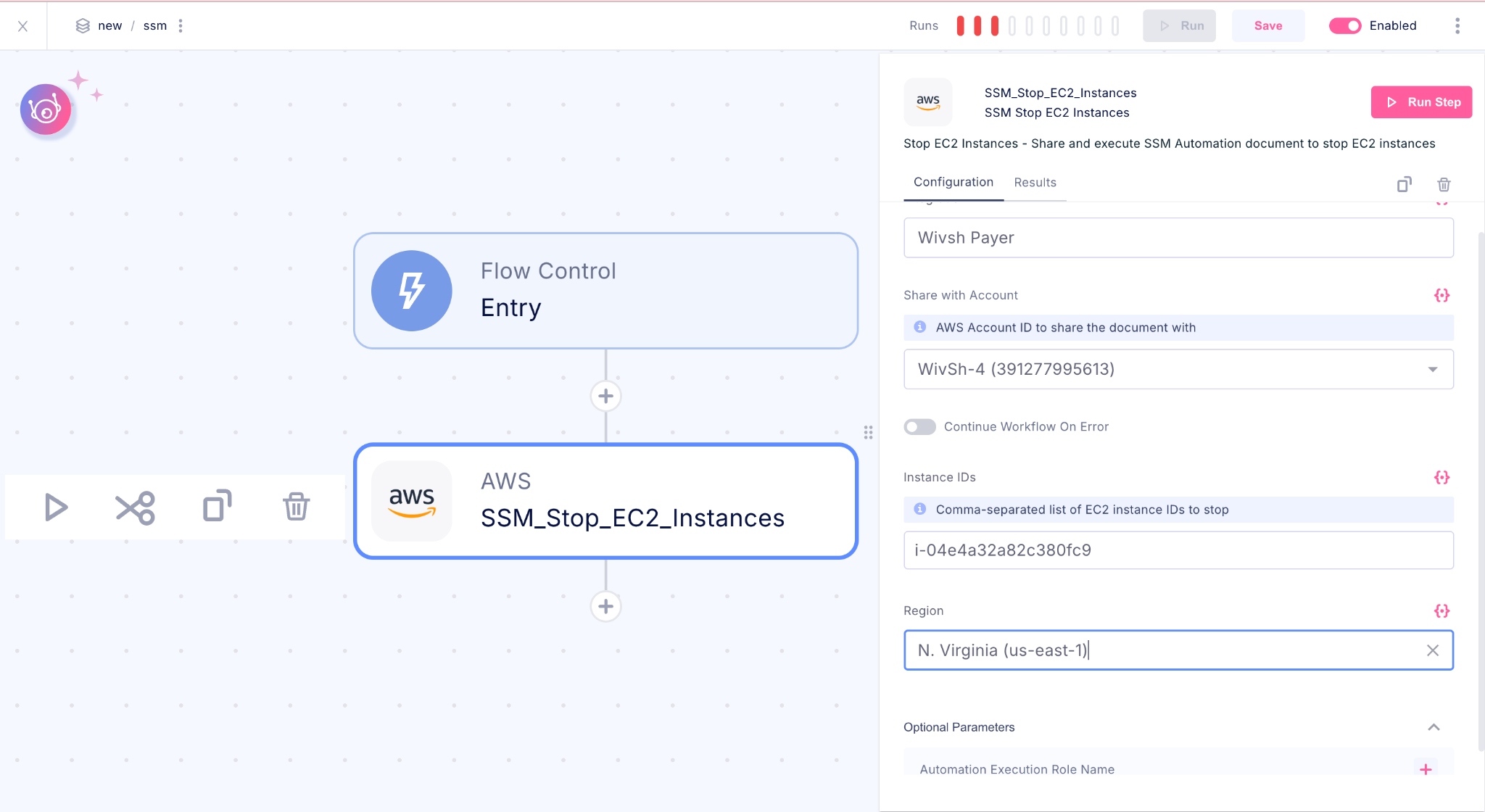
Each automation step necessitates specific parameters, which are grouped as follows:Common Parameters
These parameters apply universally across all steps.| Parameter | Requirement | Description |
|---|---|---|
| Integrations | Required | Select the AWS integration to be used. |
| Region | Required | Specify the AWS region where the target resource is located. |
| Continue Workflow On Error | Optional | Toggle this setting to allow the workflow to proceed even if the current step fails. |
Step-Specific Parameters
| Step | Parameter | Requirement | Description | Example |
|---|---|---|---|---|
| SSM Delete EBS Volume | Volume ID | Required | The unique identifier of the EBS volume to be deleted. | vol-0123456789abcdef0 |
| SSM Stop/Start/Terminate EC2 Instances | Instance IDs | Required | A comma-separated list of the target EC2 instance IDs. | i-0123456789abcdef0, i-0987654321fedcba0 |
Optional Parameters
| Parameter | Requirement | Description | Default Value |
|---|---|---|---|
| Automation Execution Role Name | Optional | The IAM role name in the target account that the SSM Automation service will assume. This role must have a trust policy allowing SSM Automation. | AWS-SystemsManager-AutomationExecutionRole |
Executing the Workflow
Step 3: Run the Workflow
- Save the workflow configuration.
- Execute the workflow.
- The execution will perform the following actions and checks:
- Verify the SSM document exists in the Wiv account.
- Share the document with the customer account (if sharing is configured).
- Generate a unique execution link.
Step 4: Manual Execution (AWS Console)
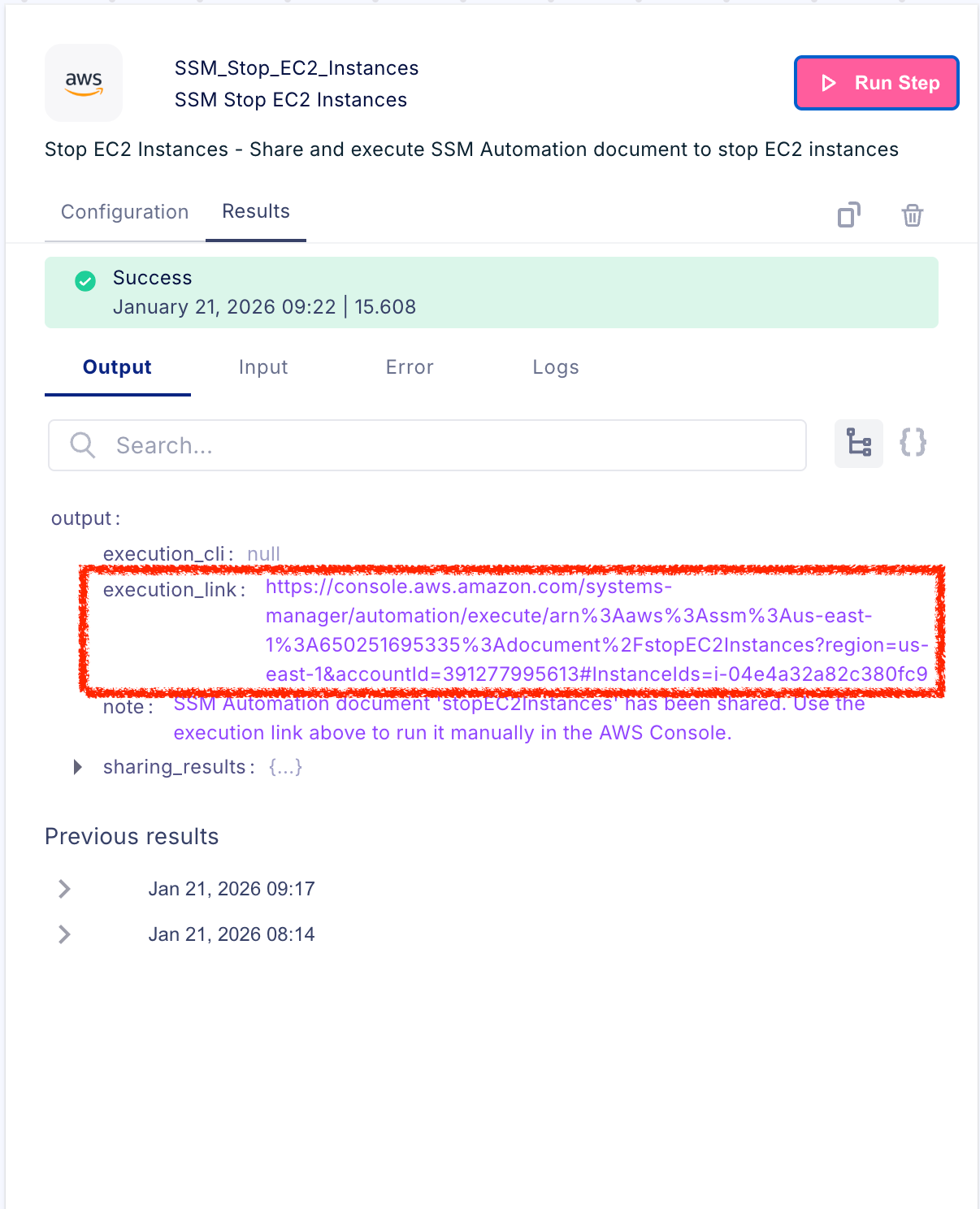
Once the workflow step successfully completes, an execution link will be provided within the step output. This link facilitates manual execution:- Click the execution link, which will open in a new browser tab.
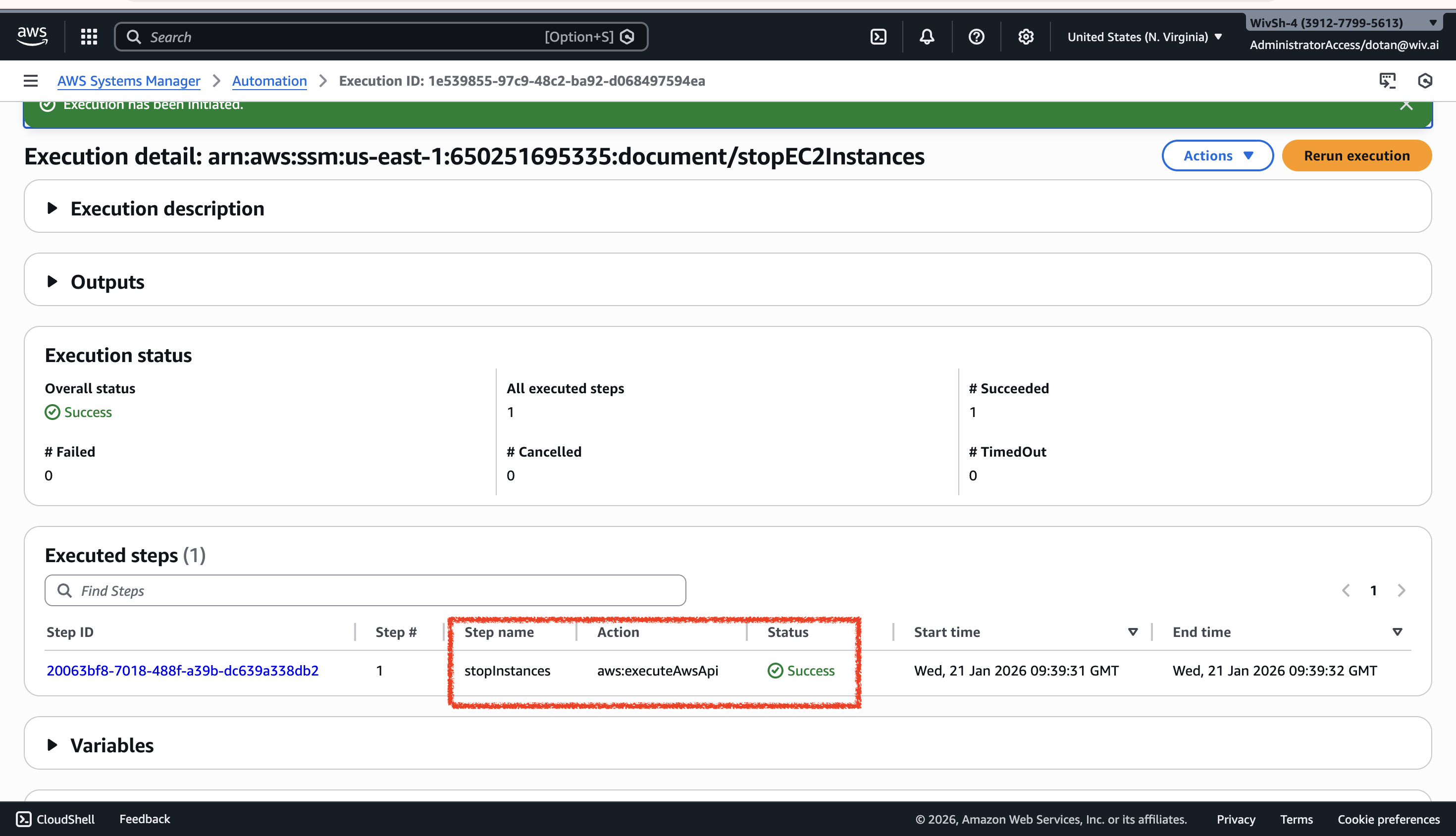
- You will be automatically redirected to the AWS Systems Manager Console with the necessary document pre-configured.
- Review the pre-filled parameters.
- Click Execute to start the automation.
- Monitor the ongoing execution directly within the AWS Console.
Workflow Step Output Details
Each completed step provides the following output information:- execution_link: A direct, clickable hyperlink to the AWS Console, ready for document execution.
- execution_cli: (Used in multi-account/region scenarios) The AWS CLI command required to execute the document across specified accounts and regions.
- note: Informational instructions detailing the use of the provided execution link.
Document Sharing & Access
- SSM documents originate from the Wiv account and are automatically shared with the customer’s account.
- This sharing is a prerequisite for execution within the customer account.
- The sharing process automatically occurs when the corresponding workflow step runs.
Execution Process (Manual Action Required)
- The workflow step does not automatically execute the SSM document.
- The step completes by sharing the document and generating an execution link.
- You must manually click the execution link and execute the document within the AWS Console.
- This manual step is required to allow for review and approval before any remediation actions are performed.
AWS Systems Manager (SSM) Integration Overview
This section details the requirements and functionality for integrating with AWS Systems Manager using a dedicated workflow step. Key areas covered include necessary IAM permissions, proper error handling, and common examples of use.IAM Permissions Setup
To ensure successful execution of SSM automation documents, the customer’s AWS account must satisfy the following IAM permissions requirements:- Automation Execution Role: A specific IAM role must exist with the name defined in “Automation Execution Role Name” (default:
AWS-SystemsManager-AutomationExecutionRole). - Trust Policy: This role’s trust policy must explicitly allow the SSM Automation service to assume it.
- Action Permissions: The role must possess the necessary permissions to perform the intended action (e.g.,
ec2:DeleteVolume,ec2:StopInstances).
Error Handling
The workflow’s execution behavior upon failure is determined by the “Continue Workflow On Error” setting. If enabled, the workflow will proceed even if a step fails. Common failure points include:- The required SSM document is not found in the Wiv account.
- Mandatory parameters are missing.
- Document sharing between accounts fails.
- Provided resource IDs are invalid.
Examples
Example 1: Deleting an EBS Volume
This example demonstrates how to use the “SSM Delete EBS Volume” step:- Add the “SSM Delete EBS Volume” step to your workflow.
- Configure the parameters:
- Integrations: Select your AWS connection.
- Volume ID: Specify the target volume, e.g.,
vol-0123456789abcdef0. - Region: Enter the AWS region, e.g.,
us-east-1.
- Run the workflow.
- Use the execution link provided in the step output to review the command execution details, including parameters.
- Finalize and execute the operation in the AWS Console.
Example 2: Stopping Multiple EC2 Instances
This example illustrates the use of the “SSM Stop EC2 Instances” step:- Add the “SSM Stop EC2 Instances” step to your workflow.
- Configure the parameters:
- Integrations: Select your AWS connection.
- Instance IDs: List the instances as a comma-separated string, e.g.,
i-0123456789abcdef0, i-0987654321fedcba0. - Region: Enter the AWS region, e.g.,
us-west-2.
- Run the workflow.
- Use the execution link in the step output to review the details.
- Finalize and execute the operation in the AWS Console.